Platform Overview

Step by step, with real app screens.

All the images on this page were taken from PatientPort itself, with sample patients in demo mode. In each section you can switch between the computer and phone views. The screens with a lock icon are opened together in a live demo made for your clinic. All modules are fully included in every plan.

Real interface · Sample data from demo mode
01 · Operations Center

What is happening in your clinic right now, at a glance.

The Operations Center gathers all of today's patients, appointments, transfers and payment statuses in one list. When a record changes, the screen updates without reloading the page.
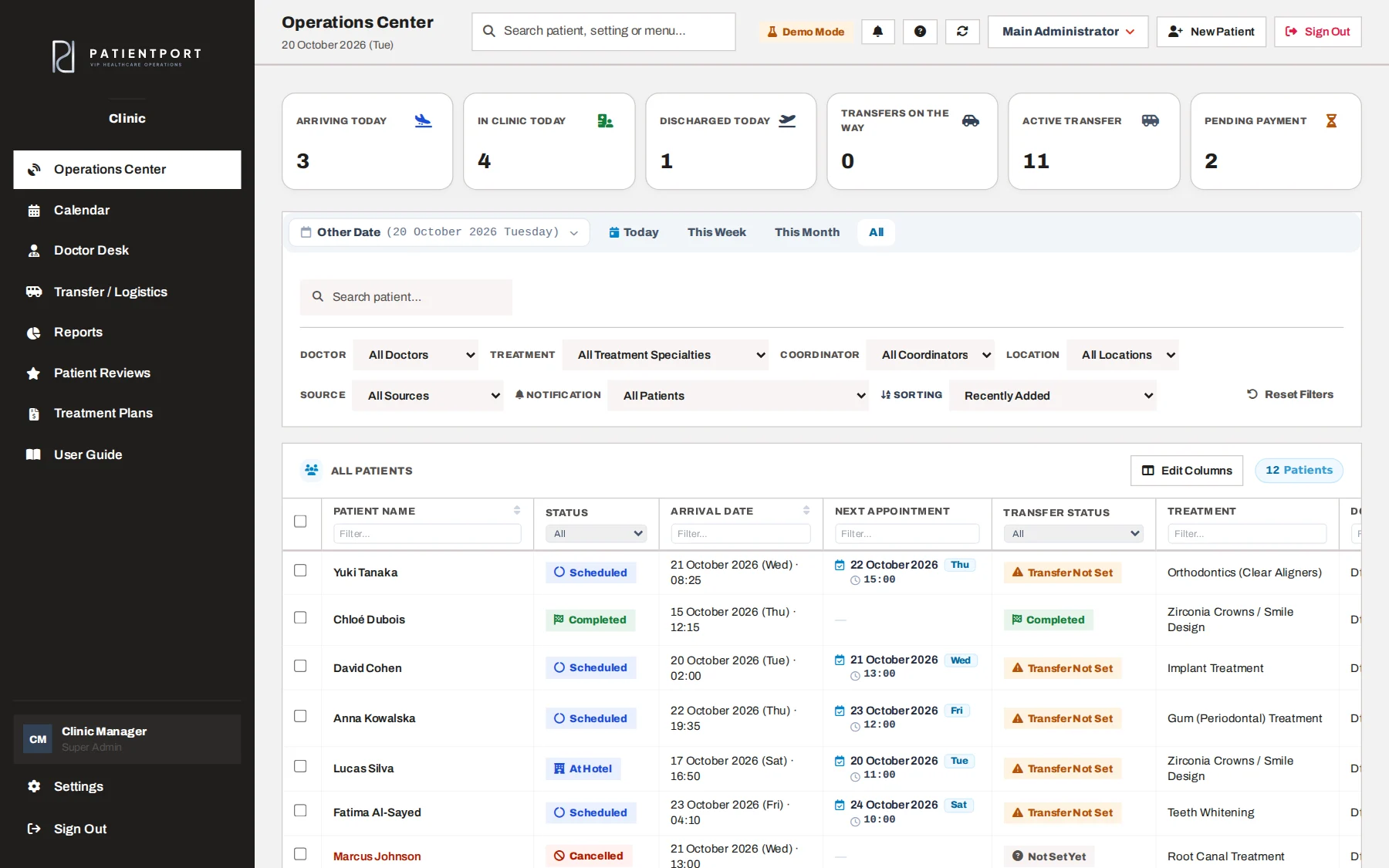
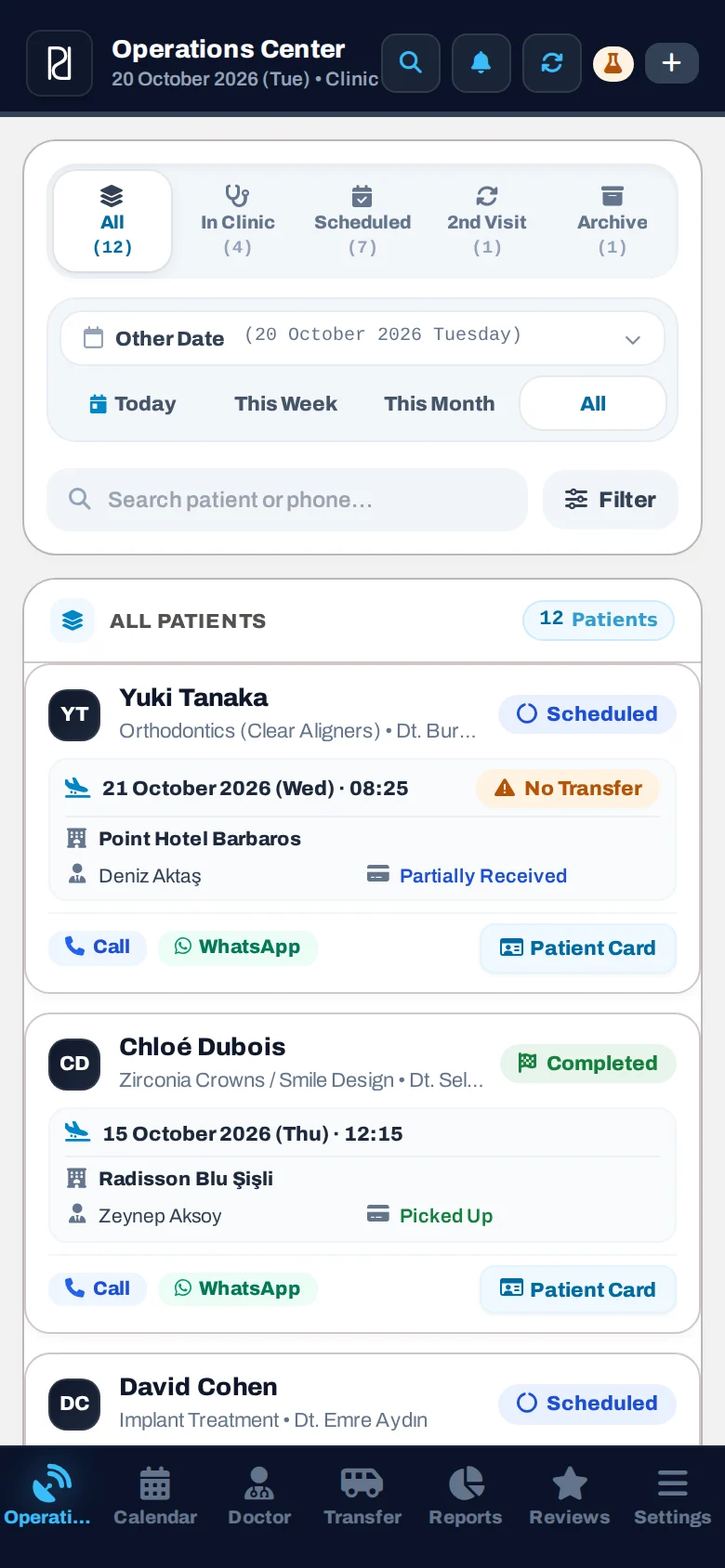
  • Counts at the top for arrivals today, patients at the clinic, discharges, transfers on the road, active transfers and pending payments
  • Filters by doctor, treatment, coordinator and location; a specific date, today, this week, this month
  • You choose which columns you want to see
  • On mobile: All, At Clinic, Scheduled, Second Visit and Archive tabs; Call, WhatsApp and Patient Card on every card
  • A general search that finds patients, settings and menus

Tap the menus and buttons on the screen to explore

app.patientport.com.tr
Operations Center
Operations Center

Today's summary, filters and the patient list. Status badges (Scheduled, At Hotel, At Clinic) are set automatically from the transfer records.

02 · Patient Card

Everything about a patient on one card.

The patient card has five tabs: Patient Details, Payments, Transfers, Doctor and Activity Log. Changes you make on the card wait until you press Save; if you try to close without saving, you get a warning.
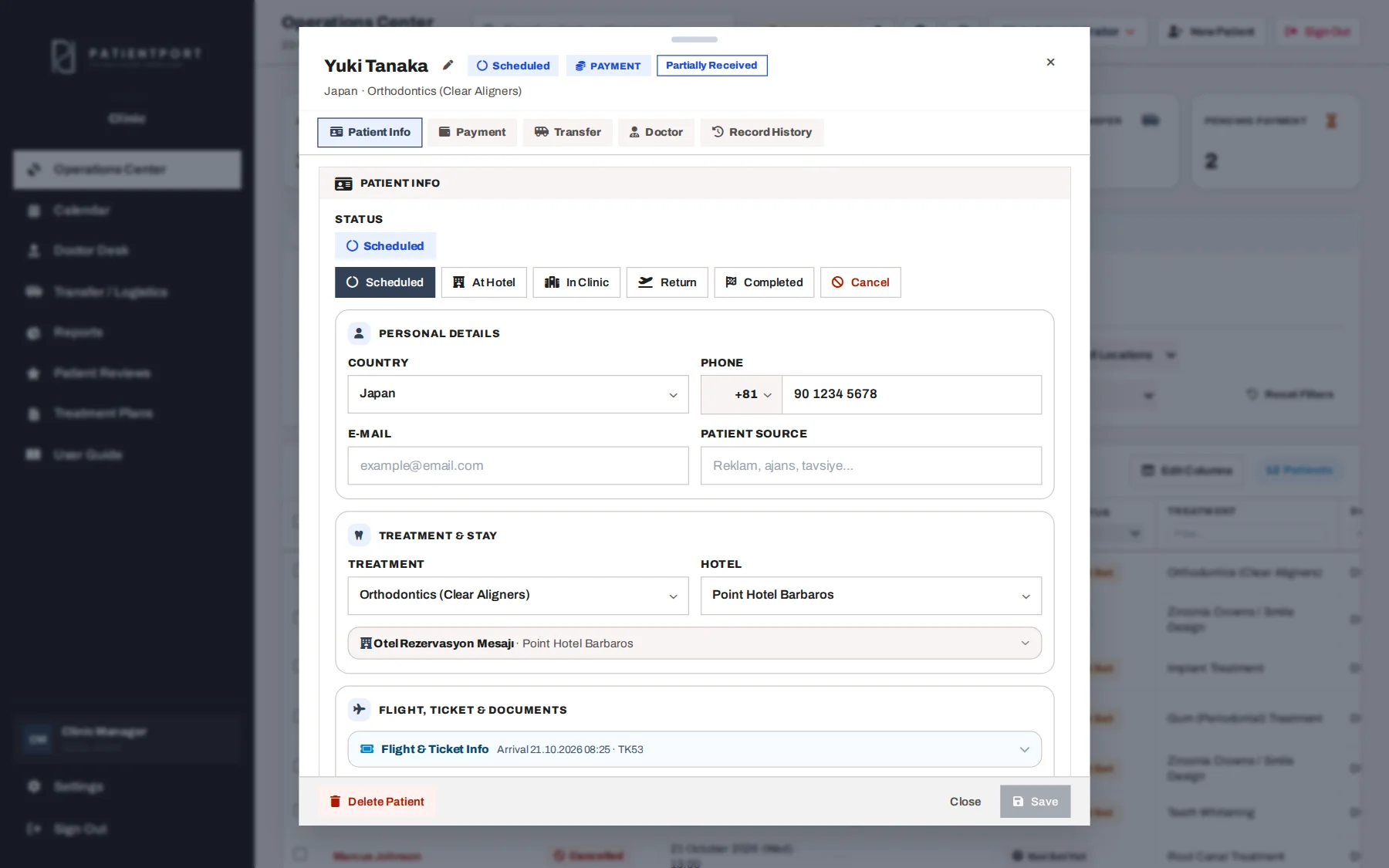
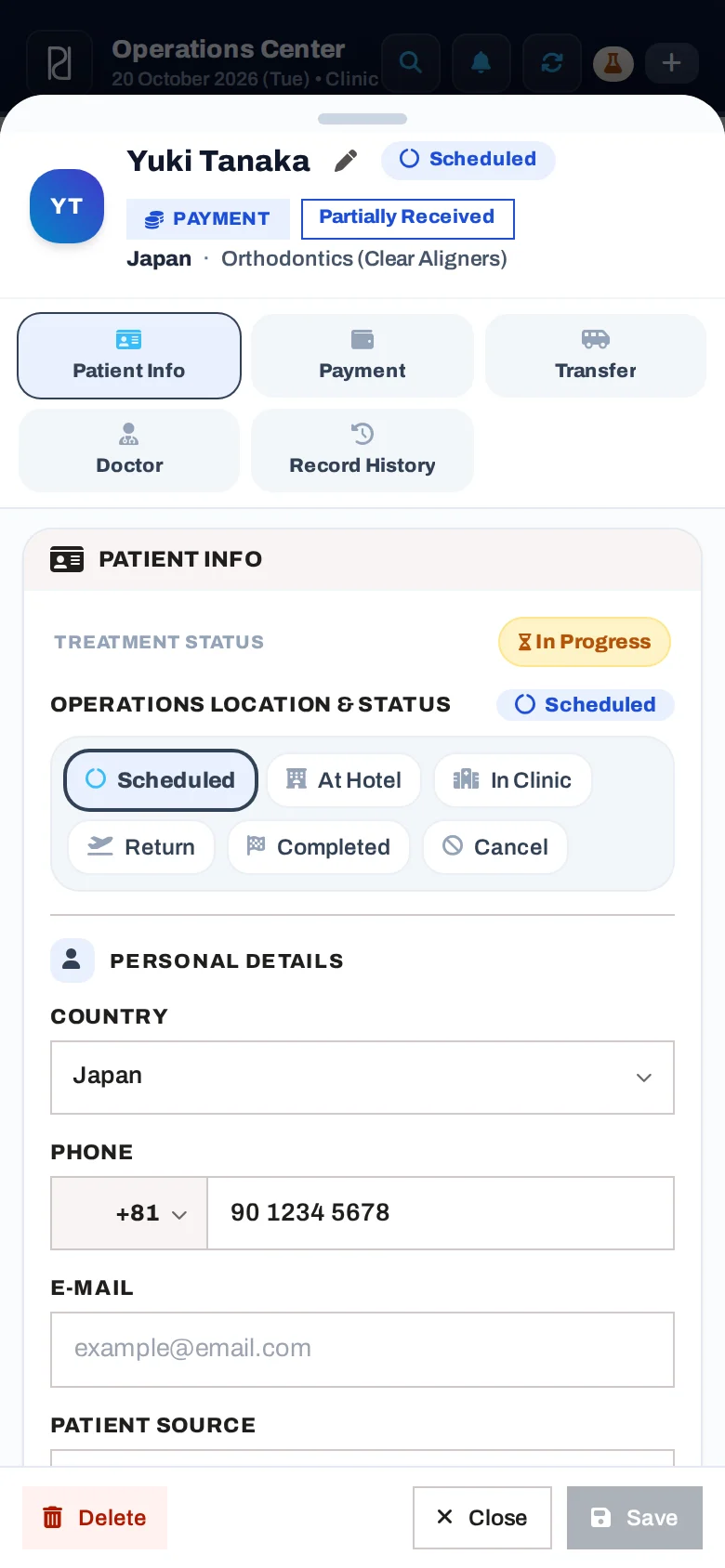
  • Status, contact details, treatment, hotel and the patient's access code
  • Flight and ticket details are kept separately for each visit
  • Activity Log: who changed what, and when
  • Each role sees only the tabs it is allowed to see
  • Documents & Images: treatment plans, X-rays and reports on the patient card; selected files also appear in the patient portal

Tap the menus and buttons on the screen to explore

app.patientport.com.tr
Patient card
Patient card

Status, country, phone, treatment, hotel, flight and ticket details and the patient's access code on one tab.

03 · Calendar

Appointments and transfers in the same calendar.

In the month view, you see the number of appointments, arrivals and departures for each day. The list view shows the day's flow in time order.
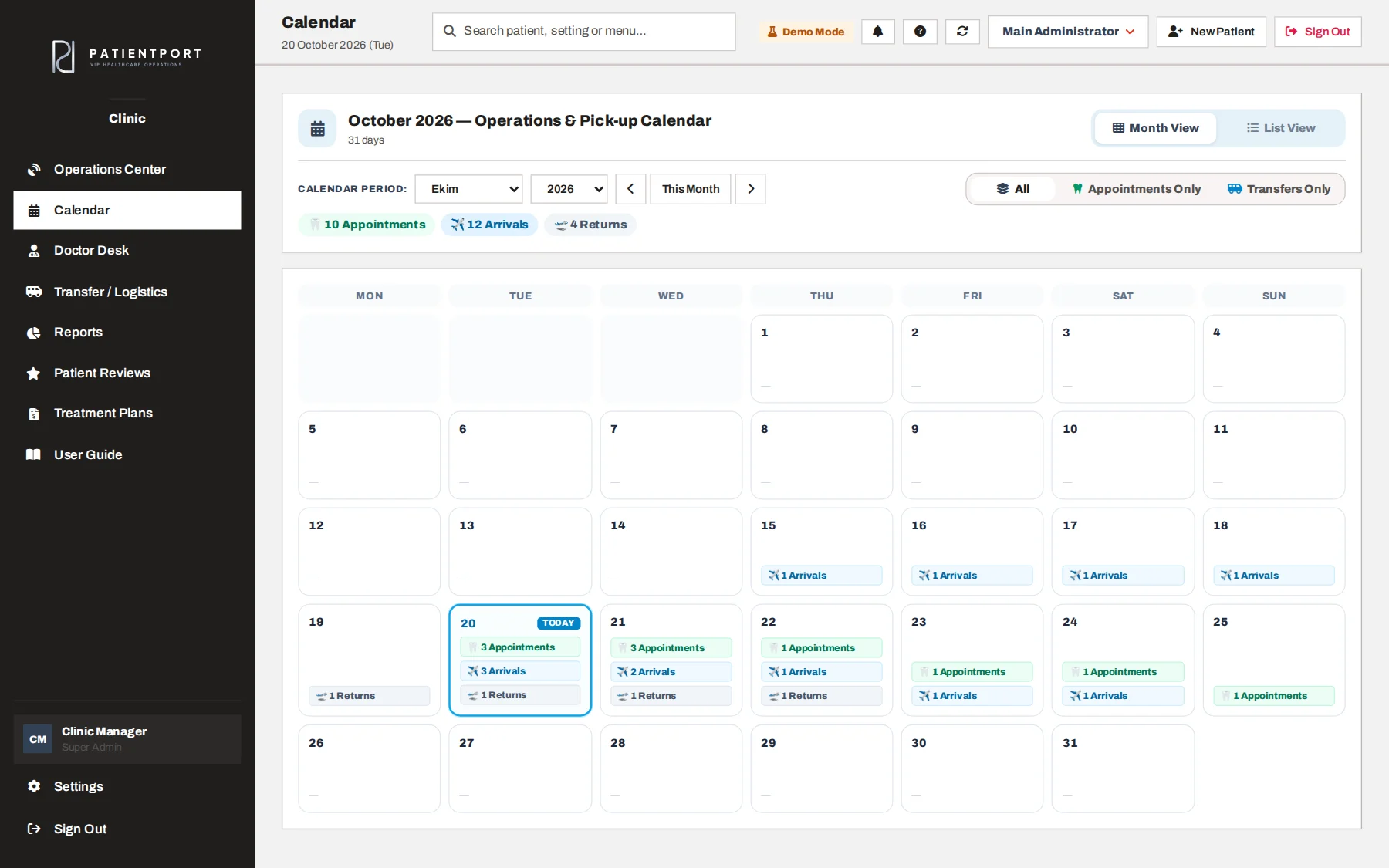
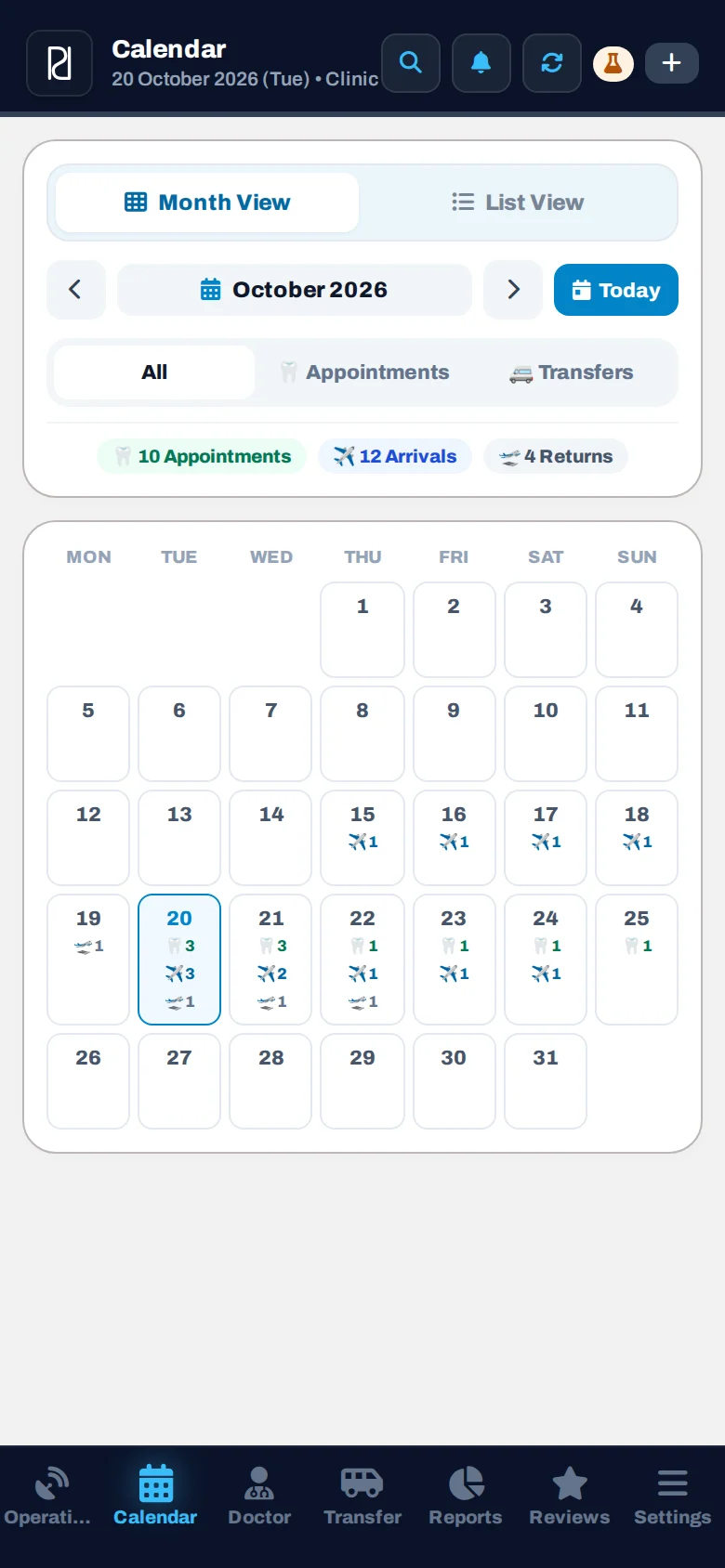
  • Month view and daily list view
  • All, Only Appointments and Only Transfers filters
  • Doctors, coordinators and drivers see their own calendar
  • The same data on desktop and mobile

Tap the menus and buttons on the screen to explore

app.patientport.com.tr
Calendar
Calendar

Appointments and transfers in the same calendar, with All, Only Appointments and Only Transfers filters.

04 · VIP Transfers & Logistics

From the airport to the hotel, from the hotel to the clinic.

Each patient's arrival, return and in-between transfers are planned separately. A driver is assigned; when they set off, the patient and the coordinator get an instant notification.

  • Arrival, return and in-between transfers to the clinic
  • Your own drivers or an external transfer agency
  • A simple mobile task screen for the driver and instant notifications
  • Airport ↔ Clinic route for patients who stay at the clinic
  • Transfer details are sent to the driver or the agency with a ready-made message template

The transfer list is locked on this public page because it contains patient and driver data.
Tap the menus and buttons on the screen to explore

app.patientport.com.tr
Transfers & Logistics (locked preview)

Let's look at this part together in a live demo.

Your patient is notified instantly the moment the driver sets off.

The moment the driver taps "On my way", the patient's phone gets a notification like "your driver is on the way, pick-up at 09:30 (about 25 min)"; the coordinator is informed at the same time. The patient portal never shows the vehicle or plate; the driver's contact card opens only if the clinic allows it.

Tap the menus and buttons on the screen to explore

app.patientport.com.tr
Driver task screen (locked preview)

Let's look at this part together in a live demo.

05 · Doctor Desk

Doctors focus on their own patients.

The Doctor Desk splits the doctor's patients into active and completed cases. Appointments and treatment sessions are listed on one card, and each one can be marked as completed.

  • Active Cases and Completed Cases
  • Appointment and session list, session notes and procedure tags
  • The medical history form filled in by the patient is ready for the doctor
  • Prescriptions: how many times a day, before or after meals, time of the first dose
  • Doctor notes are never shown to the patient
  • The patient's doctor can be changed with one click when needed
  • More than one doctor can be assigned to a patient; each doctor sees their own patients

These screens are locked on this public page because they contain medical information.
Tap the menus and buttons on the screen to explore

app.patientport.com.tr
Doctor Desk (locked preview)

Let's look at this part together in a live demo.

06 · Payments

Who paid how much, and how much is left?

The total treatment price, the amount received and the remaining balance are calculated instantly. Treatment can be split into several visits, and each visit's price and remaining balance are shown separately.

  • Visit plan: from a single visit up to 10 visits
  • Euro, pound sterling, US dollar and Turkish lira
  • Partial payments, payment method and date
  • Refund records: the refund line is not deleted and stays visible in the history
  • Every price change stays on record in the payment history

This screen is locked on this public page because it contains financial information.
Tap the menus and buttons on the screen to explore

app.patientport.com.tr
Payments tab (locked preview)

Let's look at this part together in a live demo.

07 · Treatment Plan & Price Quote

Treatment plan and price quote in a few minutes.

You pick treatments from your clinic's price list; quantity, discounts and total are calculated for you. The plan is made as a Turkish or English document with your clinic's logo and contact details, and it also appears in the patient's portal.

  • A tooth chart for dental clinics and a female / male body chart for plastic surgery: tap a tooth or an area to select it and see suitable treatments
  • Several visits, named discounts, extra charges and an instalment plan
  • Download as PDF or image and share from your phone
  • The patient sees and accepts the plan in the portal; an accepted plan cannot be changed, a copy is opened for changes
  • Validity period; an expired plan cannot be accepted
  • The doctor sees the plan without prices; only staff with payment permission see prices
  • When saved, the plan is moved to the payment plan; if a fee was entered before, you are asked first
  • Plans can also be made for people who are not registered as patients yet; ready templates and copying

The treatments, prices and terms in a plan belong to the clinic. The patient's acceptance in the portal is acceptance of the price quote; it does not replace the informed consent taken before treatment.

08 · Referral Program

Let your happy patient refer a friend.

An optional program, switched off by default. If the clinic turns it on, the patient refers someone close to them from the portal; the referral reaches the coordinator and the manager. The clinic decides whether there is a reward, how much it is and how it is given.

  • The patient sends the name and phone number of the person they refer, confirming they share it with that person's permission
  • Referrals have their own tab in the Operations Center; a new referral arrives as a notification
  • The referred person is registered as a patient in one tap
  • The reward is prepared when the referred person completes their first visit; a fixed amount or a percentage of what they paid
  • The reward is not shown to the patient until an authorised clinic staff member approves it
  • The reward is paid in cash or by bank transfer, or deducted from a later payment; the same balance cannot be used twice
  • Referral report in Reports: referrals received, who registered, rewards paid

The referred person's phone number is never included in notifications. Referrals that do not become patients are deleted automatically after a set period.

09 · Reports

How the clinic is doing, in charts.

The Reports screen summarizes collections, new registrations, arriving patients and pending payments for the period and currency you choose; every user sets up their own report layout.

  • Collection, new registration and arriving patient charts by period
  • Breakdown by treatment, doctor, coordinator and payment method
  • New patient breakdown by country and patient source
  • List of patients with pending payments and Excel export

This screen is locked on this public page because it contains financial information.

Tap the menus and buttons on the screen to explore

app.patientport.com.tr
Reports (locked preview)

Let's look at this part together in a live demo.

10 · Patient Portal

Your patients follow their own process on their phone.

The patient logs in with their phone number and their own access code. No app needs to be downloaded. The portal opens in Turkish, English, German or Russian, depending on the patient's language.
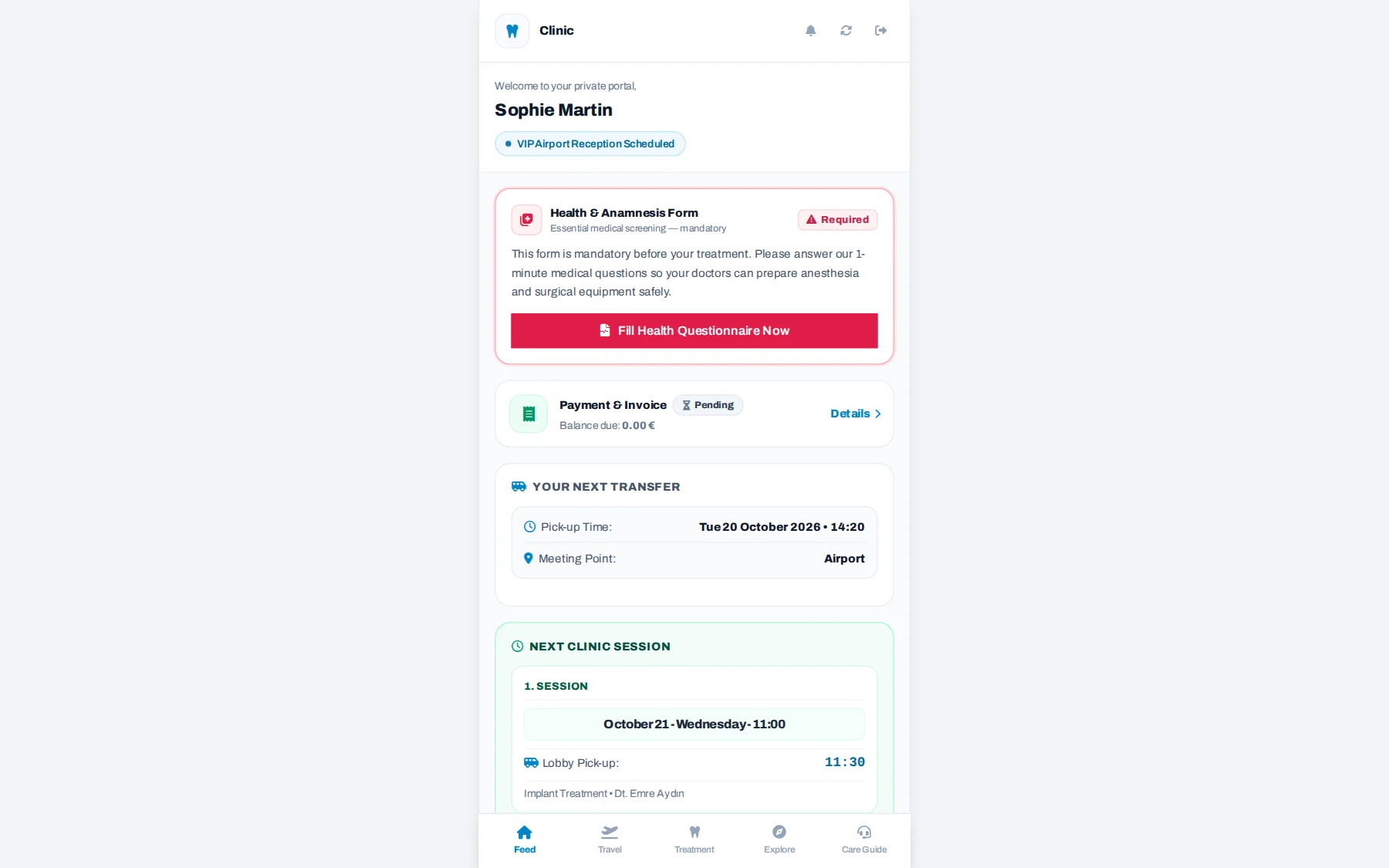
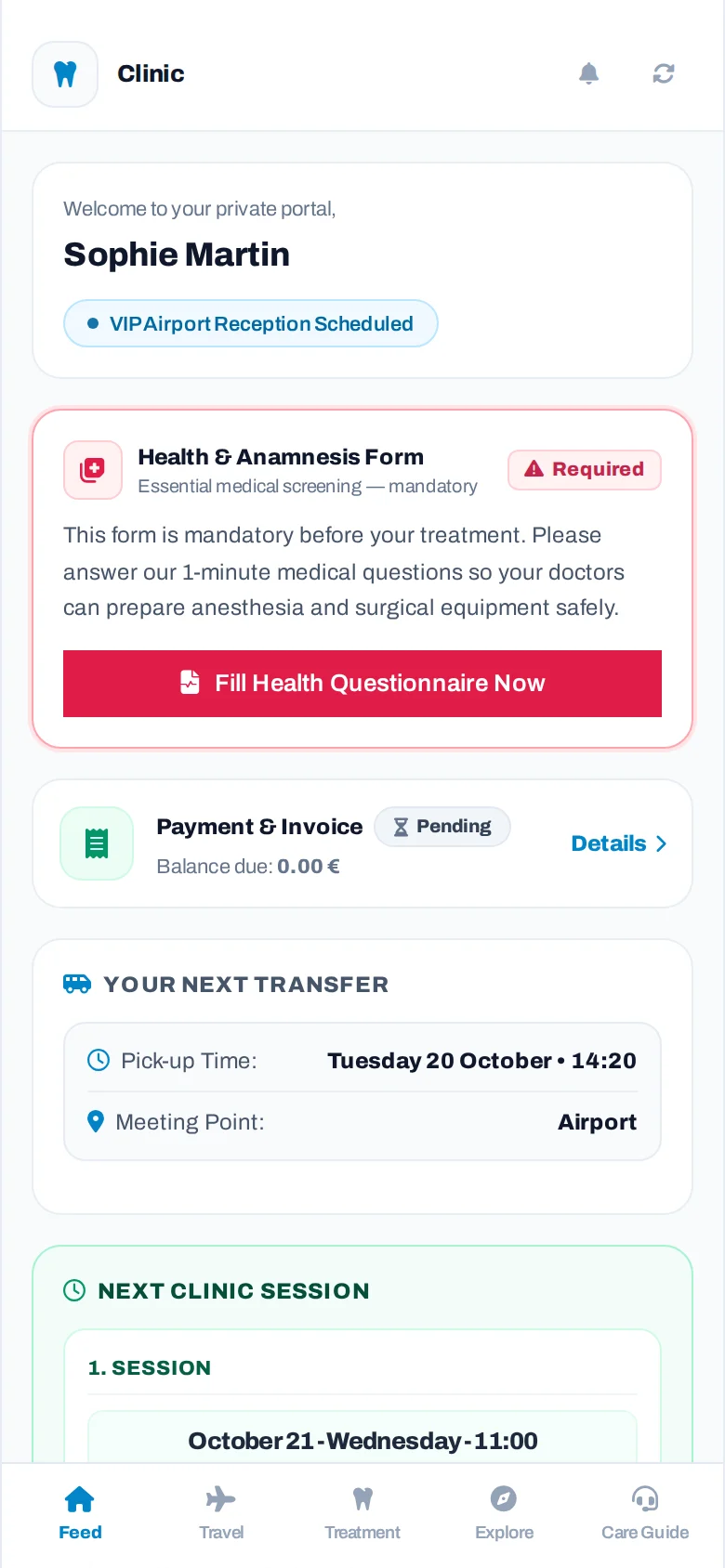
  • Feed, Travel, Treatment, Explore and My Care Guide: five simple tabs
  • Transfer time and meeting point; no vehicle or plate is shown to the patient
  • Medical history form, payment summary, medication list and treatment-specific care guide
  • A review at the end of treatment; happy patients are guided to Google and Trustpilot
  • Explore: clinic photos, before/after gallery, certificates and team
  • Added to the home screen with the clinic's own logo and name

Tap the menus and buttons on the screen to explore

app.patientport.com.tr
Patient portal
Patient portal

The first screen the patient sees: payment summary, transfer time and meeting point, and the treatment journey.

Go to the Patient Portal page →

11 · Notifications

The right notification, to the right person, at the right time.

Staff get phone notifications for the work that concerns them. Patients can also turn on notifications in the portal to get appointment and transfer updates instantly.

  • A new transfer task for the driver
  • For the patient: appointment set, transfer set, driver on the way
  • Optional reminders: the clinic decides how many days before the appointment or arrival they go out
  • The clinic turns each notification on or off and writes its text itself, in Turkish, English, German and Russian
  • Patients can turn off notification types other than transfers
  • Reminder to the patient at medication time; earlier if the clinic wants

Tap the menus and buttons on the screen to explore

app.patientport.com.tr
Patient notifications (locked preview)

Let's look at this part together in a live demo.

1

A record is entered

The operations team saves the appointment or transfer and assigns the driver.

2

The right person is notified

The driver gets a new task, and the patient gets a "your appointment / your transfer is set" notification. Patient notifications are sent in Turkish, English, German or Russian, depending on the patient's language.

3

The patient is informed when the driver sets off

When the driver starts the transfer, the patient gets a "your driver is on the way" notification, and the coordinator is informed at the same time.

4

No app to download

Notifications come through the web app added to the phone's home screen. No separate installation from the App Store or Google Play is needed.

12 · Settings & Permissions

Shaped around your clinic.

Staff are invited by email, and you set separately which panels, which patient card sections and which table columns each role sees.

  • Staff invitations: the link is valid for 48 hours and can be sent again
  • Permissions by role and by person
  • Hotels, treatment and medication catalogs, clinic gallery and certificates
  • Clinic logo, colors and patient portal settings
  • Deleted patients are not lost and can be restored
  • Bulk patient import from Excel; all patient data can be downloaded back as Excel on request
  • Clinic-wide activity history: login, logout and export actions are visible to the administrator

The staff and permission screens are locked on this public page.
Tap the menus and buttons on the screen to explore

app.patientport.com.tr
Staff management (locked preview)

Let's look at this part together in a live demo.

13 · Infrastructure

The layer you do not see, but that runs every module

Real-time sync

A change made on one device shows up on every open screen within a few seconds. Only the patient that changed is loaded again.

No installation needed

It runs in the browser and can be added to the phone's home screen like an app. There is nothing to download from a store.

Separation by clinic

Each clinic's data is kept separate at the database level. Permissions are checked on the server, not only hidden on the screen.

Would you like to see the locked screens too?

In a live demo made for your clinic, let's go through all the screens together with your own scenarios.